Cool VIM commands
When it comes to being efficient, one of the tools that I find most helpful is VIM-style shortcuts. They are quite easy to learn, and can be integrated into a lot of different editors, programs or workflows; for example overleaf, vimium (for browsers), cursor or even desktop managers can be set up to use them.
One of the things that I like the most is that you only need to learn the shortcuts once, and then you can navigate, search, select or modify in virtually any situation.
But the main entry of this blog is about the editor that gave birth to these commands, VIM (in fact this is the younger sibling of the original editor, but it is the one that I use by default). Some of the arguments for vim being the editor that I go to when I have to write notes or edit some (non-code) document are the following:
- It is quick
- It is lightweight
- It can be accessed from the terminal
- It comes almost in any system
- It is universal
- There is no UI
- You can access an integrated command line
- You can make use of macros, and other features that are uncommon on other editors
- It is highly customizable
- There is no need for a mouse
- Help is easily accessible
In addition to this you can also further customize your vim editor through the editing of the .vimrc file, where things like line numbers, syntax highlighting or word wrap can be set for every run of the program. But there are two modifications in my .vimrc that I find particularly useful:
Xzt
One of the commands from vim is using zz to set the line where the cursor is at to the center of the screen, or zt to set such line to the top. Sometimes I found the center of the screen to be too low still (specially if I wanted to write a lot), but I still wanted to see some of the lines above to have a bit of context. To solve this, using the function
function OffsetCurrentLineFromTop()
	let current_line = line('.')
	let current_col = col('.')
	let line_to_move = current_line - v:count > 0 ? current_line - v:count : 1
	call cursor(line_to_move, current_col)
	normal! zt
	call cursor(current_line, current_col)
endfunction

nnoremap zt :<C-U>call OffsetCurrentLineFromTop()<CR>
I am able to type Xzt where X is a number to move the line X above the cursor one to the top position.
Shift-tab for autocomplete
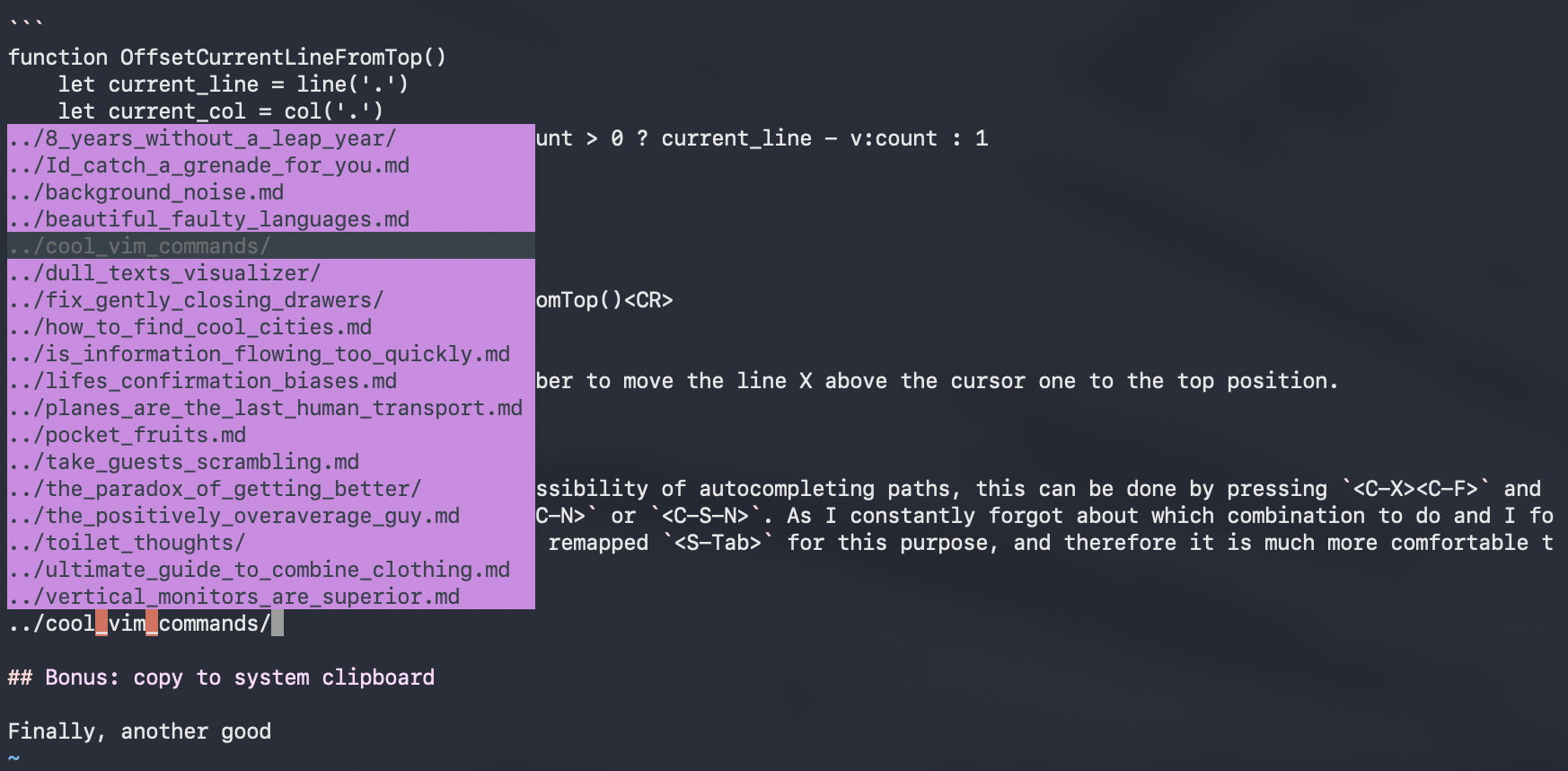
Another very nice feature of vim is the possibility of autocompleting paths, this can be done by pressing <C-X><C-F> and then navigating the emergent menu using <C-N> or <C-S-N>. As I constantly forgot about which combination to do and I found pressing two keys too annoying, I also remapped <S-Tab> for this purpose, and therefore it is much more comfortable to autocomplete.
Bonus: copy to system clipboard
Finally, another thing that I am using a lot since I discovered it is that if you want to yank something to the system clipboard rather than to the VIM clipboard, you can do that by running "+y instead of y. This proves particularly useful when you are using a combination of VIM+cursor or if you want to copy something from your notes.